Some organizations do not have a computer or laptop for each employee, rather they use a shared device. In cases like this, it is important to understand best practices for logging into training to avoid any caching issues and subsequent errors.
Best Practices for device sharing
Logging In
There are a few ways to login to avoid caching issues when sharing a device:
- Open your session in an incognito or In Private window
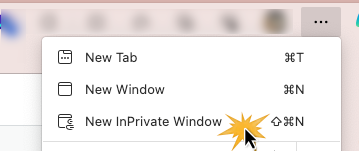
- On Microsoft Edge, click the three dots on the right of your browser and choose New In Private Window
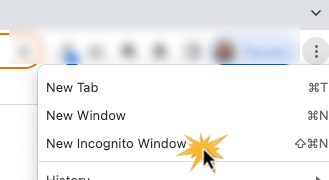
- On Chrome, click on the three dots in the top right of your browser window and choose New Incognito Window
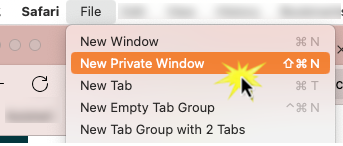
- On Safari, click on file in the top left of your browser and select New Private Window.
 Tip! The biggest difference between Private browsing and a normal session is that both your browser and the sites you visit won't remember you once the Incognito window gets closed.
- On Microsoft Edge, click the three dots on the right of your browser and choose New In Private Window
- Create a different profile on the device that you can login to. Both PC's and Macs have options for creating multiple user profiles that can easily be accessed through a start screen.
- Clear your cache every time you finish your training. This is a less attractive option since clearing your cache means other information is going to be gone as well... we recommend the first option.
Logging Out
Always log out of your account after you have completed your learning - if you are using a private browser, it should log you out automatically but it's always a good idea to click that logout button!
Was this article helpful?
That’s Great!
Thank you for your feedback
Sorry! We couldn't be helpful
Thank you for your feedback
Feedback sent
We appreciate your effort and will try to fix the article