Programs are a collection of learning content. In other words, you can group courses (or checkpoints/live training) together into one Program, which you can then assign learners. You get the option of forcing learners to complete each course in a specific order, or in any order they choose.
You can create as many programs as you want, and they can contain as many courses as you need. You can then assign them just like a Course.
Creating a program
In the Navigation menu, click the Author menu option.
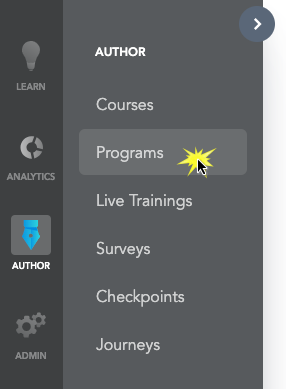

On the Programs page, click the Add New Program button.

In the Program Title field, enter a name for your program.If you do not enter a program name, your program will be saved as Untitled Program.

In the Program Description field, enter a summary of the program. This description will help Learners understand what the program is about and what they can expect to learn. The description will be visible on the My Learning page.
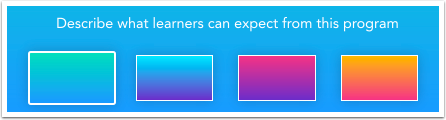
Click the color gradient that you would like to be displayed to learners when they view the program.
Add Content

You can add three different kinds of learning content to your program. Courses, Live Trainings and Checkpoints can be added for learners to complete as part of their program requirements. To add learning content to your program, click the Course, Live Training, or Checkpoint icon [1].Learning content can be separated into sections with headings that give more structure to the program. To add a header, click the Heading icon [2].

Enter header text in the Header field [1]. The Header field is limited to 100 characters.To add a description, enter the description text in the Description field [2]. The Description field is limited to 2000 characters.Adding sections to a program does not impact the program item count or a learner's ability to complete the program in any order.

In the Content Title field, enter the name of an existing course, live training, or checkpoint to add to your program. Click the content name when it appears.If you would like to create a new piece of content, click the New Course link. This will create a blank course that will need to be populated with content using the Course Content Editor.
Bridge will show you the details of your added content.
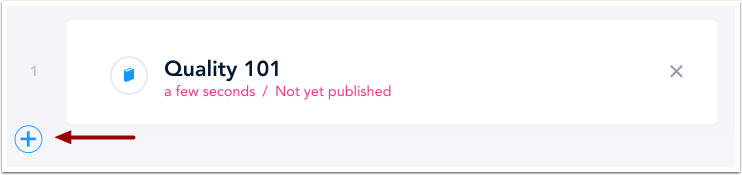
To add more content to your program, click the Add Content button.
Remove Course
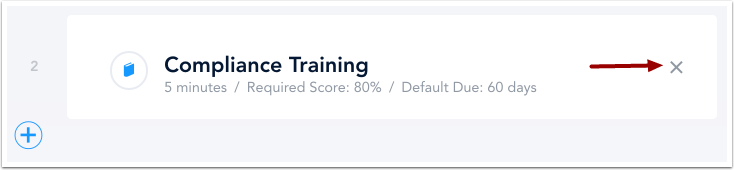
To remove an item from a program, click the Remove icon.
Note: If a learner has started a course that has been removed from a program, the learner will remain enrolled, and the course will become optional. If a learner has not started a course in a program, their enrollment in the course will be deleted.
Confirm Removal
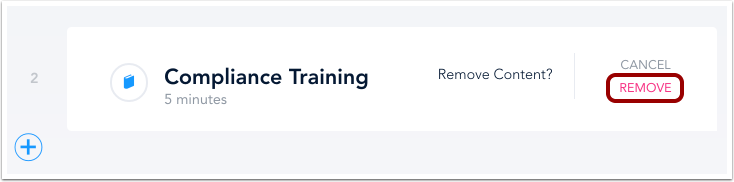
To confirm, click the Remove link.
Reorder Courses
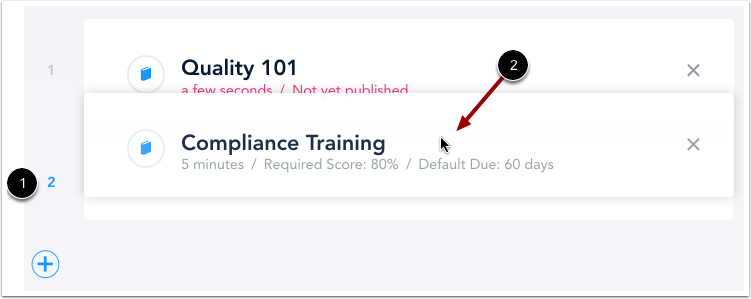
The numbers to the left of each item [1] identify the item order in the program. If necessary, you can drag and drop items to reorder them in the program [2] and the numbers will automatically adjust.
Return to Program Details
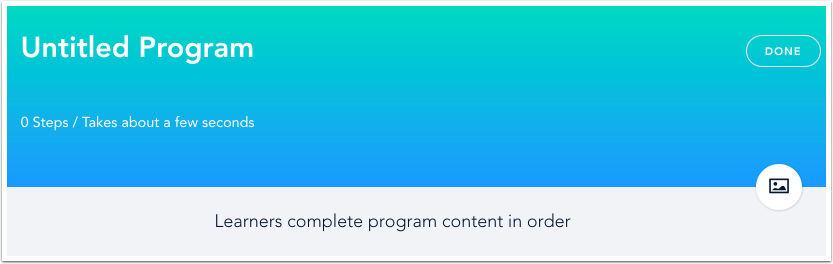
To return to the Program Details page, click the Done icon.
Was this article helpful?
That’s Great!
Thank you for your feedback
Sorry! We couldn't be helpful
Thank you for your feedback
Feedback sent
We appreciate your effort and will try to fix the article